We improved OneDrive folder automount
A lesser-known feature of Microsoft OneDrive is the ability to automatically mount shared file libraries from your organization.
Imagine handing a laptop to a new employee with all company files available out of the box and continuously synced — a pretty cool feat, right?
Sure, if only configuring the policies wasn’t an administrative nightmare.
We were developing VisualDrive Server, a self-hosted server for OneDrive. And we tried to make the automount experience a bit more intuitive.
Err… what? Automount?
Automount is a shorthand for the “Configure team site libraries to sync automatically” OneDrive policy.
The OneDrive client app has many policies that can be configured by the administrator. They change different aspects of the app behavior. For example, you can configure silent sign-in, customize bandwidth usage, back up standard folders, and automatically mount folders.
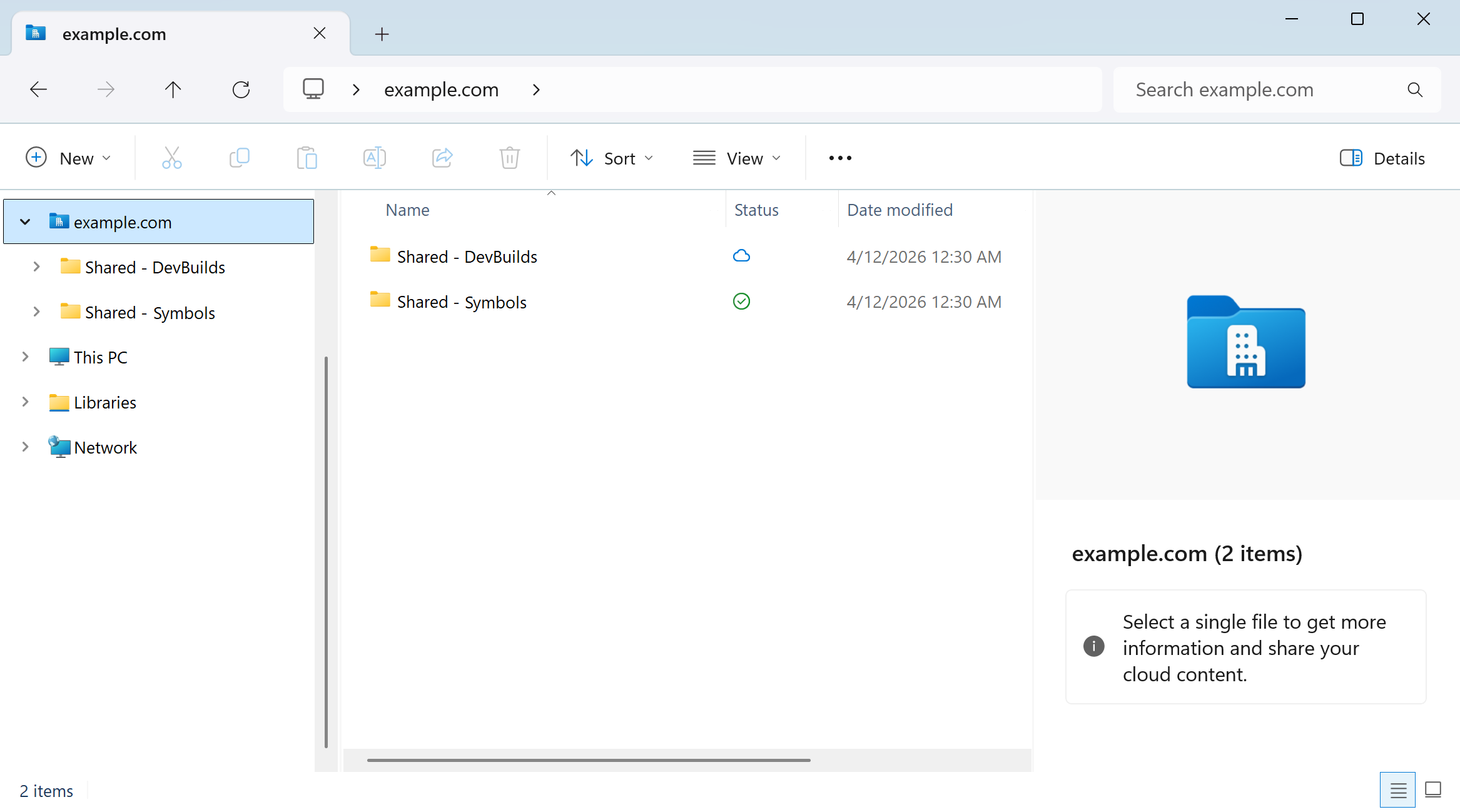
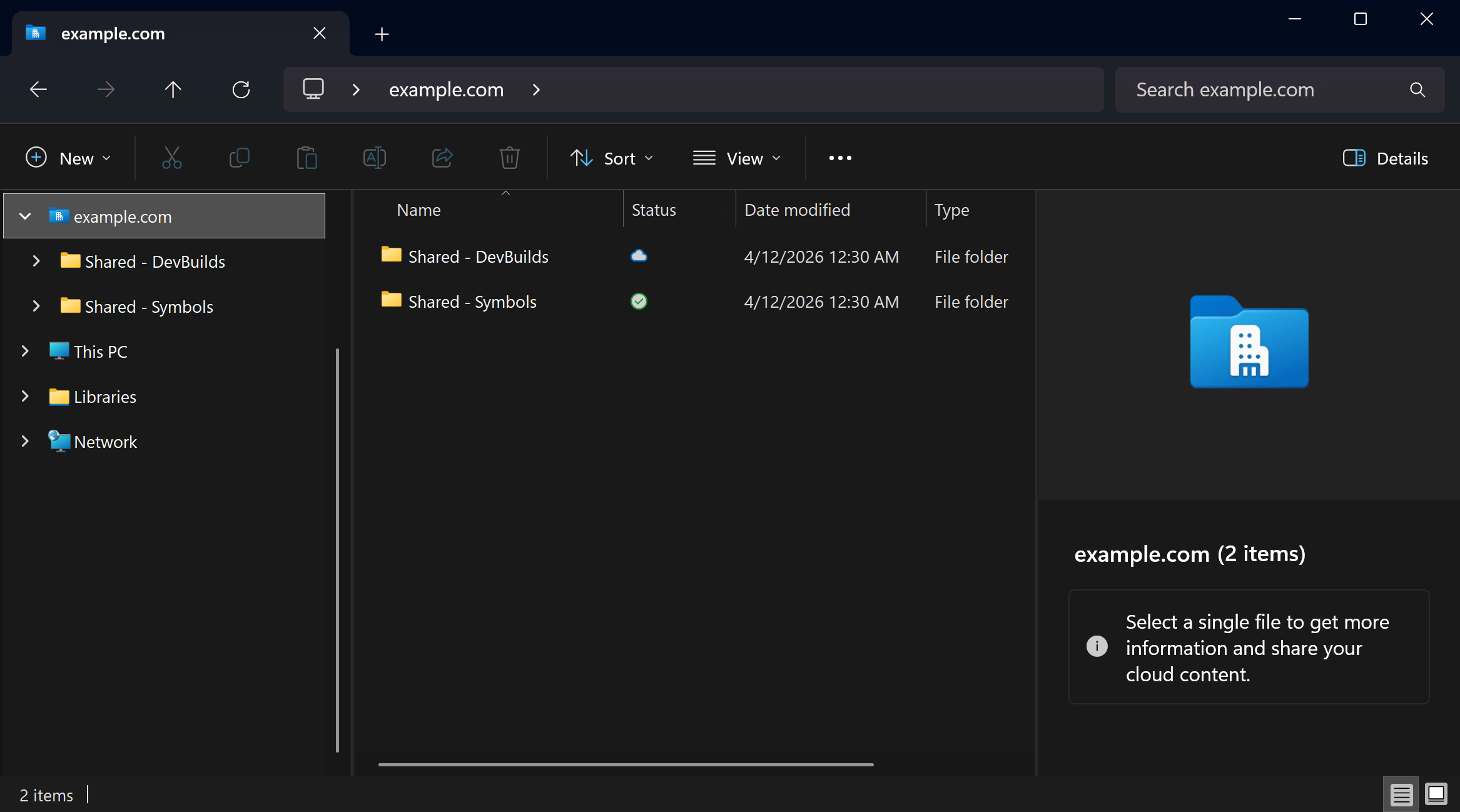
An automount policy allows predefined shared locations to automatically sync to your device. These locations appear as folders in the File Explorer. Different users can have different automount policies assigned to them.
Automounted folder works like a centrally advertised network share, but with better structure and all OneDrive features: automatic sync, simplified sharing and access management, versioning, retention, search, and on-demand content fetching.
Why is cloud automount hard to configure?
In the cloud, the server environment and the OneDrive policy distribution environment have no knowledge of each other.
As a result, no administrative tool can provide a convenient editor for the automount configuration — one that stays up-to-date with the remote state, and where you can pick what to mount.
This results in a rather unintuitive configuration experience with several problems:
Problem 1: Getting the library ID
To mount a library, you need its ID. But there’s no admin interface for this. Instead, you have to navigate to the library in a browser and start syncing it to your device. On the sync dialog, you have the Copy library ID link:
Copy library ID to configure this library to sync automatically.
However:
- To sync, you need read access. Most administrators that I know aren’t eager to grant themselves unnecessary permissions.
- The copy link may be missing. If so, the recommended way is to grab the ID from the browser Developer Tools.
- You may need to manually unescape the ID. The docs casually say that you should run
[uri]::UnescapeDataString("Copied String").
Problem 2: Editing policies without context
Once you have the ID, it’s time to configure the Group Policies. An ID value looks like this:
tenantId=b456fb95‑9415‑4f96‑b039‑0f9fba5fea39&siteId={7852d54e‑97c2‑4cea‑9ab8‑2abf9e51c41a}&webId={60e7dfb7‑aa75‑44ea‑bd61‑2f65f3dfb0fb}&listId={B81F17DE‑CA10‑4BF6‑8611‑458960EDFA20}&webUrl=https%3A%2F%2Fexample%2sharepoint%2com%2Fsites%2FOffice%5FTemplates&version=1
So here is the typical editing experience for those policies:
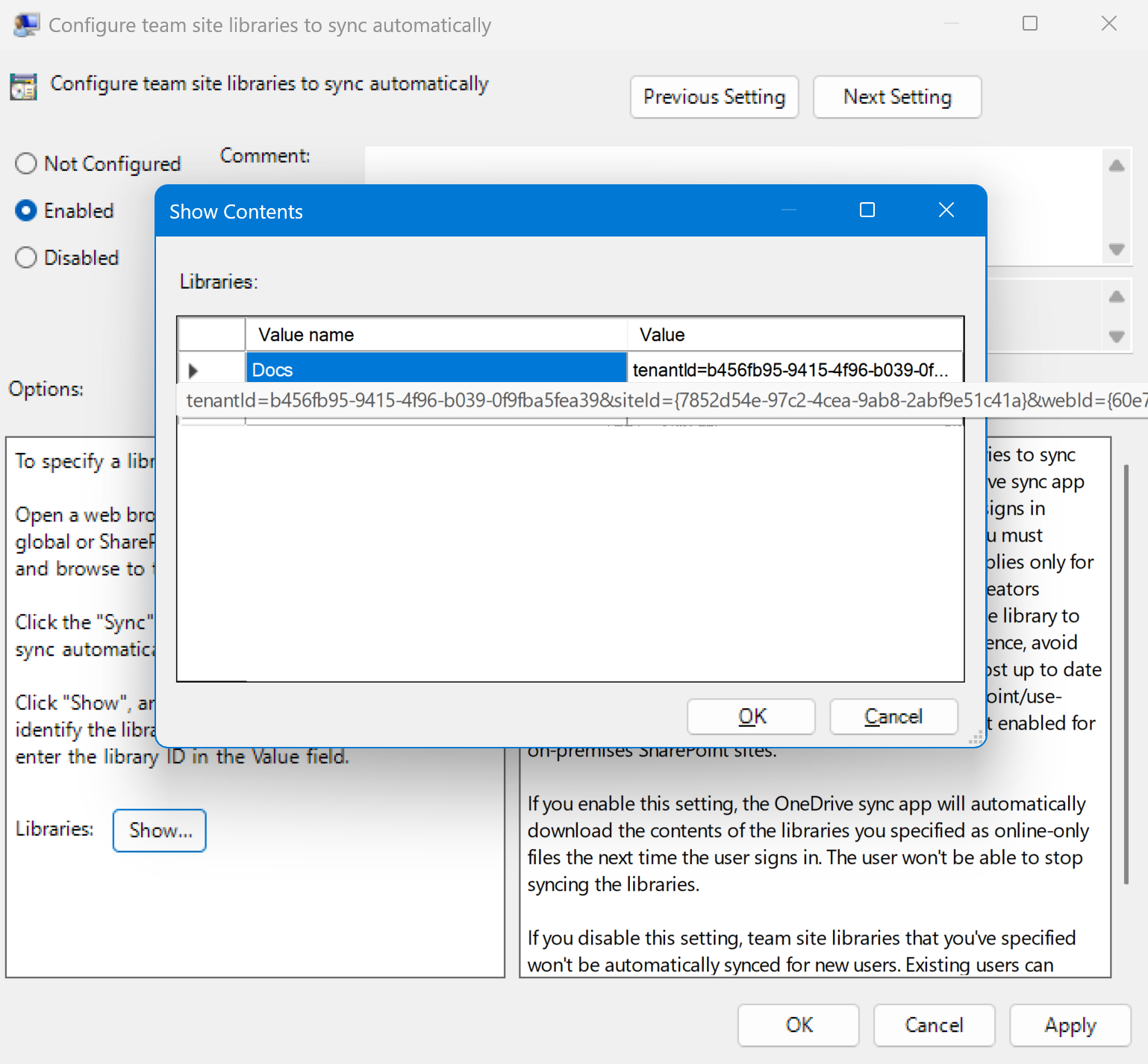
Standard policy editors are unaware of your actual intent (to mount a specific server object). And with long opaque IDs, a name-value table can quickly become unmaintainable, even if you introduce a sophisticated naming scheme.
For example, how do you know if a half-year-old configuration still points to an existing object on the server? Or check if any entries have outdated names?
Problem 3: The eight-hour delay
Let’s say you configured the policy and want to test it.
Well, you can’t :)
At least, not immediately. Automount happens with a non-configurable delay of up to 8 hours. So, you either have to be very patient or deploy straight to production, embracing cowboy administration style.
Could Microsoft do better? It’s hard to say. Perhaps a few tweaks could improve the situation:
- Using
base64urlin the IDs would eliminate the need for manual encoding. - Embedding additional metadata into the IDs could help present them more clearly in the user interface.
- A configurable delay interval would allow for easier testing and deployment.
But these improvements would still be marginal because the core problem remains: the policy distribution environment has no knowledge1 about the server. You still can’t pick objects from the server or perform common actions (like checking if the configuration is correct).
Much easier in a self-hosted environment
There’s a saying: solving a hard engineering problem often requires changing the requirements or flipping a core decision axis.
In our case, VisualDrive Server already is on an entirely different axis because it’s self-hosted.
Essentially, it combines the server and the policy distribution environments into one. All administration happens through a single management console. The console configures the server itself and all OneDrive policies in the form of Group Policy objects. We did have to write a full-featured Group Policy editor just for that:
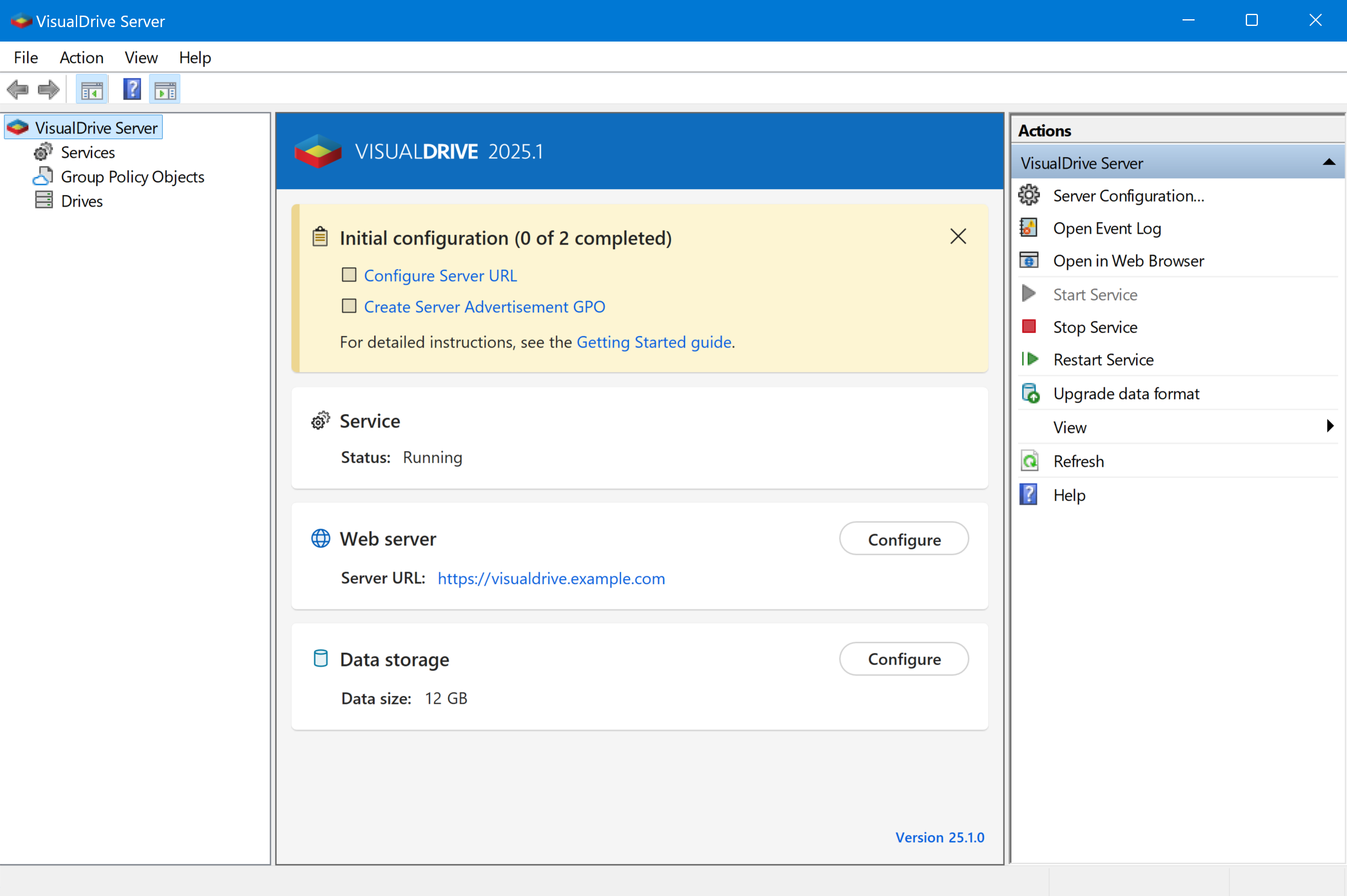
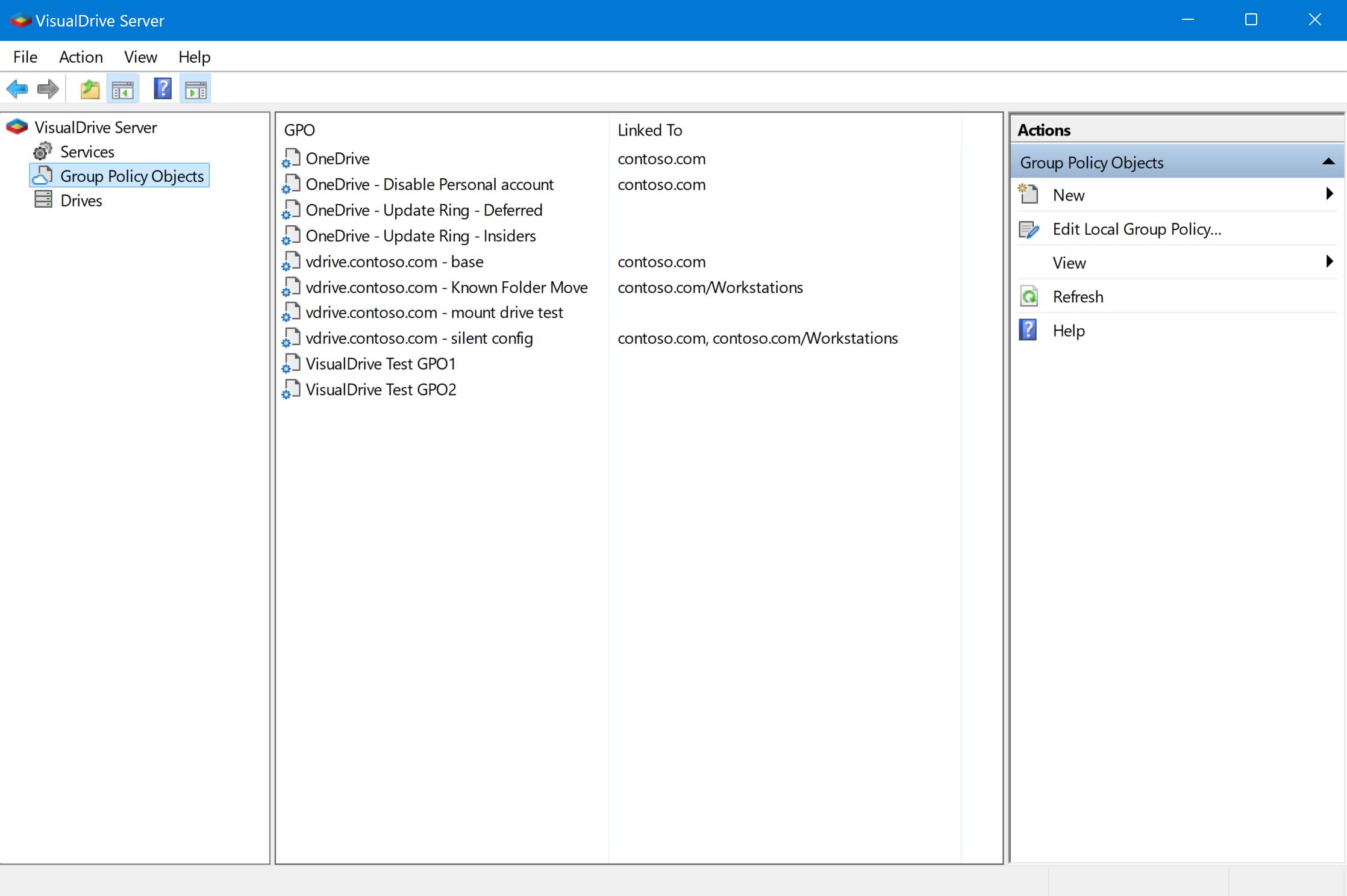
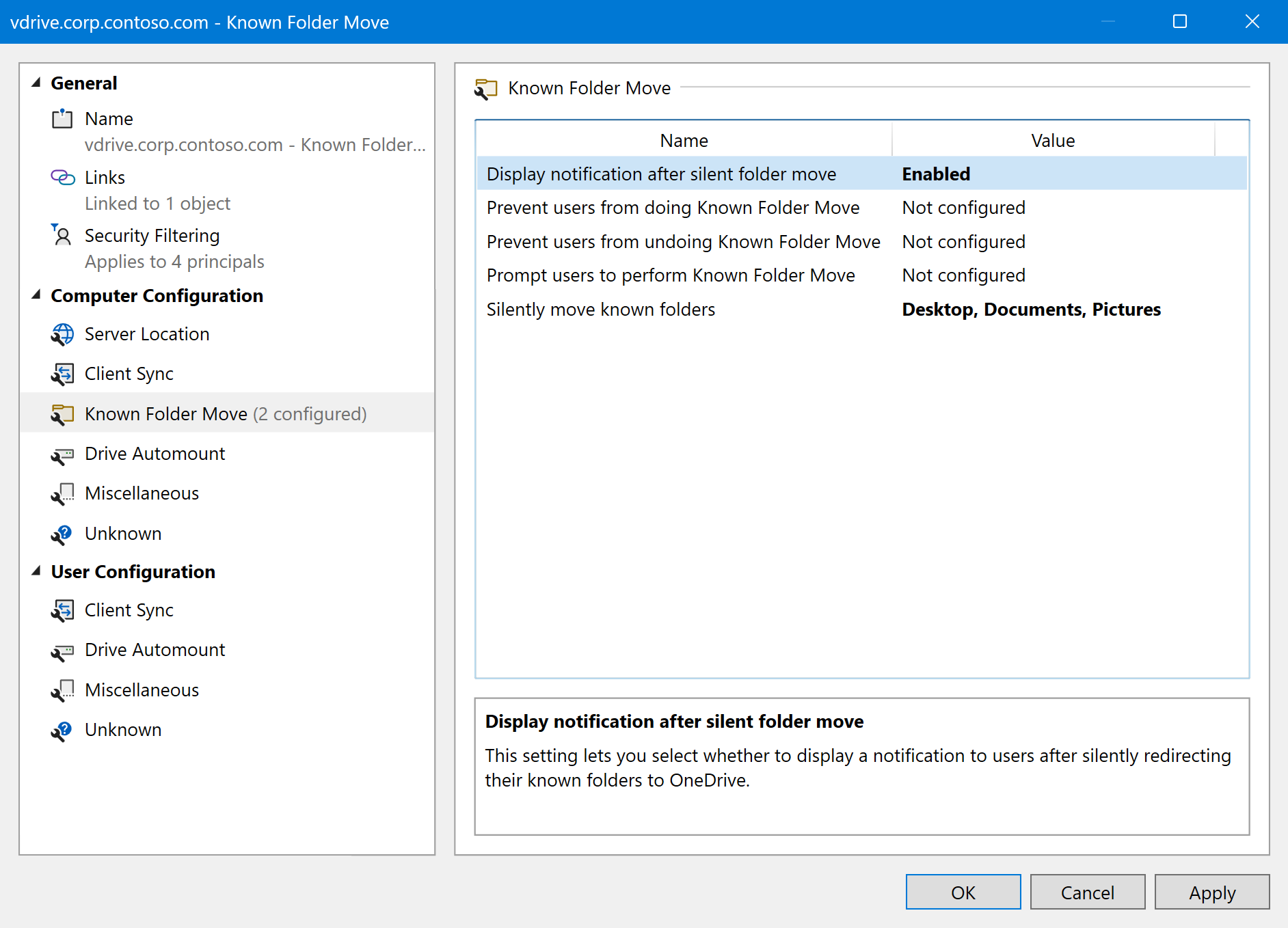
Because we control both environments, sharing state between them becomes an ordinary technical task. And suddenly, all of the original problems have simple solutions:
-
Getting the library ID is no longer needed
The administrator can simply pick the appropriate object from a list.
-
Context is no longer lost when editing policies
Implementing an enhanced policy editor (where values map to actual objects on the server) becomes relatively straightforward. The shown state is always up-to-date. Configuration issues, such as dangling entries, are detected automatically during the mapping.
-
Automount delay can be reduced to zero
In a self-hosted environment, it’s technically possible to reduce the automount delay to
0. This is a reasonable default, because OneDrive works with local network speeds, and without any kind of throttling or rate-limiting.
Passing the state around
While sharing state should be an ordinary technical task, our architecture made it slightly peculiar.
VisualDrive Server uses what we call a macroservice architecture. The core service
(vdrivesvc.exe) encloses all of the state. All background and regular operations run
as embedded pseudo-services within vdrivesvc.
We used to jokingly downplay the role of many small Win32 services in our other products by calling them “microservices”. The inverse of that is a “macroservice”. Somehow, the term stuck.
The biggest advantage of this model is exclusive access to the internal database. With a macroservice, every internal component accesses the content directly without any inter-process communication (IPC).
The obvious downside is reduced isolation: a crash anywhere within the service takes everything down.
The far less obvious downside is the development inertia. When everything folds into one single service, you start to actively resist adding external endpoints. Why bother building an IPC infrastructure when you can add another pseudo-service?
Unfortunately, this concept has its limits.
To configure the automount policies, the management console (vdrivemgr) needs to
know about the items on the server. And you cannot fold the entire console into
a background service.
So, we had to shave the yak and finally implement an actual IPC infrastructure. Under the hood, it is nothing out of the ordinary. We use a named pipe with an appropriate security descriptor. The client (management console) and the server communicate by exchanging JSON messages:
Result: a better automount experience
Thanks to our self-hostedness2, we were able to expose the server state to the management console and provide a much more intuitive experience for the automount configuration.
It consists of three parts:
-
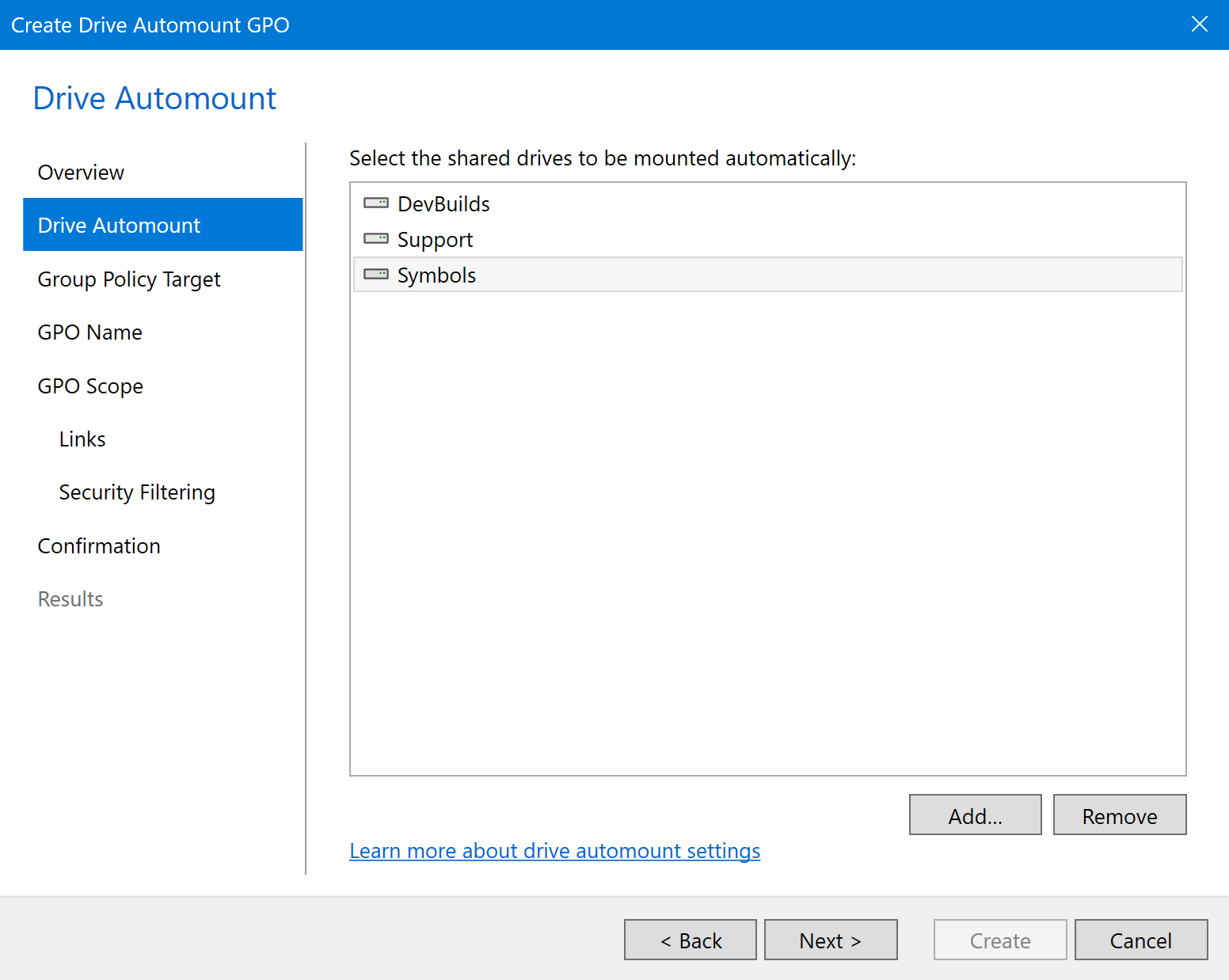
The New Drive Automount GPO wizard can be used to quickly create a new policy in your environment. Most of the configuration is simply picking the locations you want to mount.
-

The Drive Automount Policy Editor lets you review and update policies without losing context. Because the shown items are mapped to the drive objects on the server, you actually see what you are editing.
-
Automount happens immediately, without unpredictable delays. There’s no need to wait 8 hours to see if the configuration works.
Together, this results in a standard, even a bit boring Windows administrative experience. Seeing it for the first time, you might wonder what the big deal is. Unless you know or have used the alternative, of course.